Chat
The dashboard chat is the primary interface for the AI assistant. You can access the chat view in two ways:
- The overview's Make changes section: select the Chat tab and you can type your request right on the overview page
- Assistant page: full-screen chat view in the sidebar under Updates → Assistant. There you can also see previous conversations and quick actions
If you want a real-time preview and to run the checks yourself before publishing, use Studio.
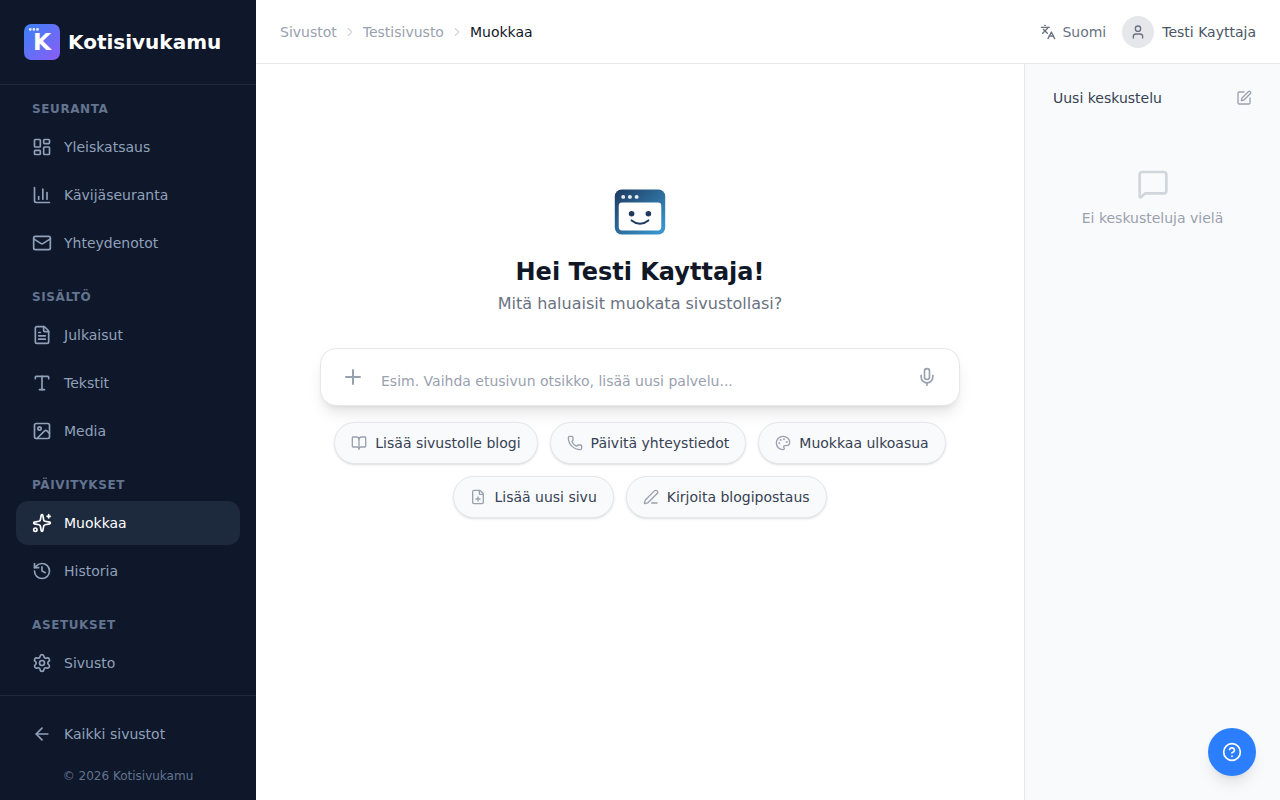
Quick actions
On the Assistant page you'll find ready-made quick actions for common changes:
- Add a blog to your site: adds a blog section to your site
- Update contact details: updates contact information on the site
- Edit the design: make visual changes
- Add a new page: add an entirely new page
- Write a blog post: create a new blog post
Attaching images
You can attach images to your change request by pressing the Add image button. This is handy when you want to replace site images with your own or show a reference image for the design you want.
Conversation history
Previous conversations are shown on the left side of the Assistant page. You can return to earlier conversations or start a new one.